New harmon.ie
 Share Files From SharePoint, Teams, or OneDrive
New harmon.ie allows you to share SharePoint, Teams, and OneDrive locations and files (documents or emails) with your coworkers—quickly and securely.
There are a few ways to share a location or a file using harmon.ie:
- COPY LINK: Copy a location/file link, then share it anywhere.
- SHARE BY EMAIL:
- SHARE IN TEAMS: Share the location or file with a person, group, or channel in Microsoft Teams.
Attach or share SharePoint files without leaving Outlook?
How to copy links to Microsoft 365 locations or files?
Use harmon.ie to quickly locate a SharePoint, Teams, or OneDrive location or file, then copy a link to it that you can share anywhere. To do that:
- In harmon.ie, locate the location or file you want to copy a link to.
- Hover over the location or file, and then click Copy link (
 ).
).
Alternatively, click Share () and select Copy link.
 ).
). ) and select Copy link.
This copies a link to the selected item to your clipboard.
Copy links to multiple items
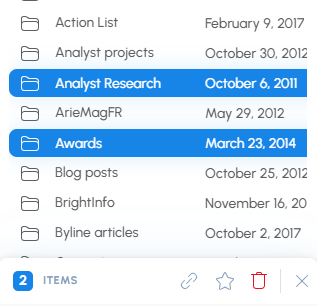
To copy links to multiple items, first select all items, then use one of these options:
- Option 1: Use the selection footer — Click Copy links () in the footer.
- Option 2: Use the context menu — Right-click the selection and select Copy links.
How to share items by email (links or attachments)?
Outlook add-in only
Use harmon.ie to add SharePoint, Teams, or OneDrive content to an email as links or attachments.
You can either add items to a draft email or create a new email with the selected items.
Before you start:
- If you already have an email draft open, use Add as link or Add as attachment.
- If you want to start a new message, use Email with link or Email with attachment.
Send items as links
Send a link to a location or file, instead of attaching the content to the email.
Add a link to an email you are composing
- Open the harmon.ie sidebar in your email draft.
- Locate the location or file you want to share.
- Hover over the item, click Share (),
then select Add as link ().
 ).
).Create a new email with links
- Open the harmon.ie sidebar in Outlook.
- Locate the location or file you want to share.
- Hover over the item, click Share (), then select Email with link.
Add multiple items as links
To add links to multiple items, first select all items, then use one of these options:
- Option 1: Use the selection footer — Click Email with links () / Add as links () in the footer.
- Option 2: Use the context menu — Right-click the selection and select Email with links / Add as links.
Tip: When the email is sent, Outlook checks whether recipients have access to the items and warns you if they don’t.
Attach Microsoft 365 files to an email message
Outlook add-in only
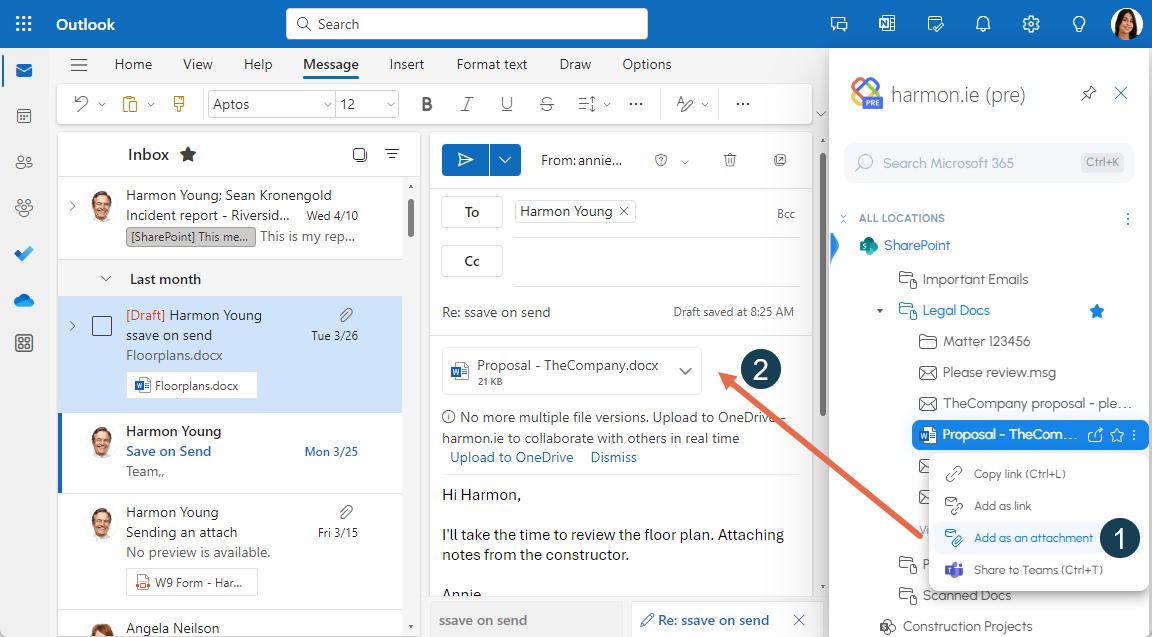
Add an attachment to an email you are composing
- Open the harmon.ie sidebar in your email draft.
- Locate the file you want to attach.
- Hover over the file, click Share (),
then select Add as attachment ().
 ).
).
Create a new email with attachments
- Open the harmon.ie sidebar.
- Locate the file you want to attach.
- Hover over the file and click Email with attachment ().
Alternatively, click Share () and select Email with attachment.
Add multiple files as attachments
To attach multiple files, first select all files, then use one of these options:
- Option 1: Use the selection footer — Click Email with attachments
() / Add as attachments () in the footer. - Option 2: Use the context menu — Right-click the selection then select Email with attachments / Add as attachments.
The following limitations apply to Email with attachment:
- This action is not available in Outlook (classic).
- In Outlook for Mac, you may need to allow Outlook to open a pop-out email: Open Outlook Settings > Mail > Compose and reply, select Pop-out to a new window and then click Save.
- This feature requires an additional permission that was introduced in version 1.3. If this permission was not
granted, the feature will not be available.
How to share a Microsoft 365 file in Microsoft Teams?
Outlook add-in only
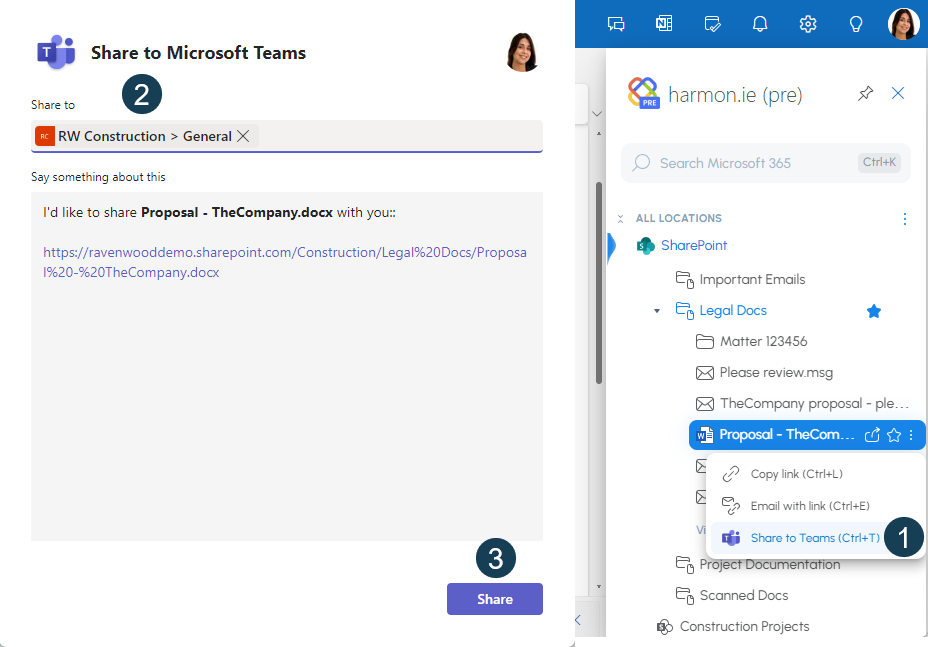
Use harmon.ie to quickly locate a SharePoint, Teams, or OneDrive document library, folder, or file, then share it with your coworkers in Teams. To do that:
- In harmon.ie, locate the location or file you want to share in Teams.
- Hover over the location or file, and then click Share (). Select Share to Teams ().
- This launches the Share to Microsoft Teams dialog.
Start typing the name of a person, group, or channel you want to share the file with. A list of matching people, groups, and channels is shown. Select one or more people, groups, or channels by clicking their names in the list. - Optionally, edit the message that will accompany the shared file.
- Click Share.
- A link to the file is posted in Teams. Either click Go to Teams to continue the conversation there or click Close to return to Outlook.
 ).
).