New harmon.ie
 Get Started with New harmon.ie (For harmon.ie Classic Users)
This article is intended for harmon.ie Classic users switching to New harmon.ie.
New harmon.ie includes the same core functionality as harmon.ie Classic, with a modern and streamlined interface.
New harmon.ie is available in two editions:
- harmon.ie for Outlook: An Outlook add-in that works in Outlook for Windows (new Outlook), Outlook (classic), Outlook for Mac, and Outlook on the Web, including modern browsers such as Edge and Safari.
- harmon.ie desktop app: A standalone application that provides the harmon.ie interface in a resizable window. Available for Windows.
This guide highlights the differences between the products, so you know what to expect when starting to work with New harmon.ie.
If you are not familiar with harmon.ie Classic, we suggest reading this Get started with New harmon.ie guide.
How to import your SharePoint locations and favorites from harmon.ie Classic
The first time you open New harmon.ie, follow these steps:
- Click Sign in with Microsoft and provide your Microsoft credentials.
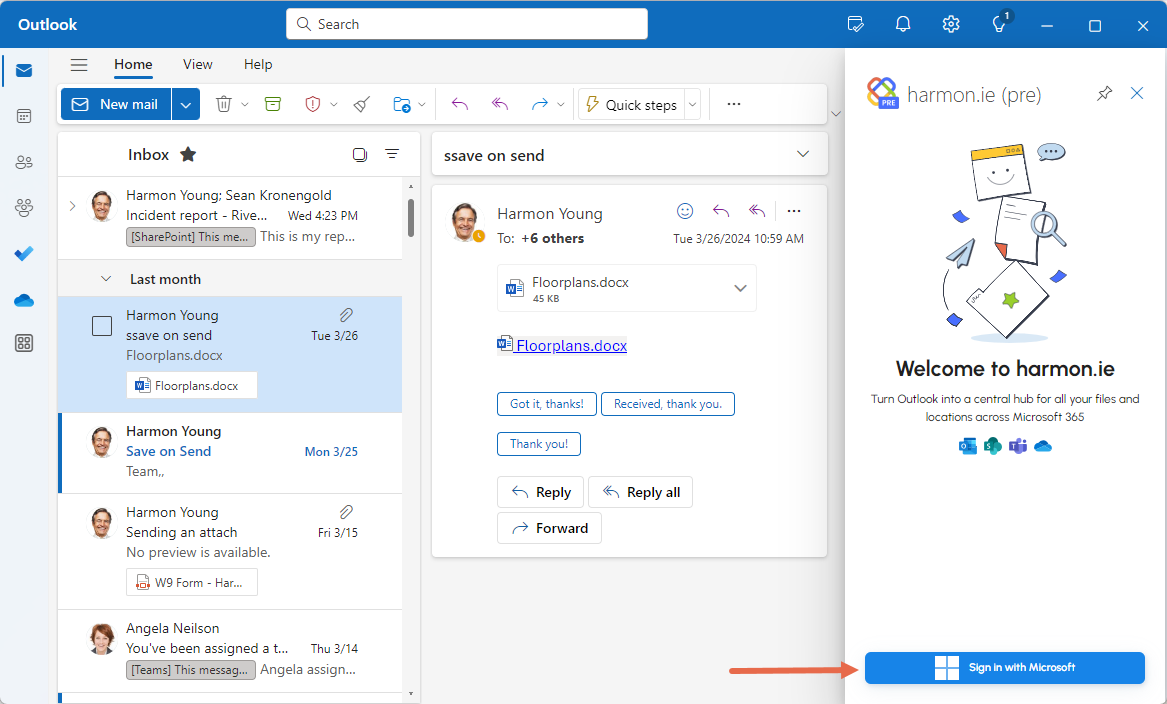
- If you’ve used harmon.ie Classic with the same credentials, harmon.ie suggests importing your data from harmon.ie Classic. Click Import my data to proceed or Skip – I’ll set up manually if you prefer to reconfigure your SharePoint sites and favorites.
- harmon.ie shows a list of SharePoint sites and automatically selects those you used in harmon.ie Classic, along with any sites your administrator configured for all users. You can adjust the selection as needed, then click Next.
- harmon.ie shows a list of Teams you frequently work with based on your Microsoft 365 activity. This list is not imported from harmon.ie Classic. Add or remove Teams, then click Done.
harmon.ie opens, showing the selected SharePoint sites and Teams. Your favorite locations are loaded into the Favorites group (this process may take a couple of minutes).
Features Still in Progress
These are the main features that are not yet available in New harmon.ie:
- Filter by tags or columns
- View and edit SharePoint lists
- Drop folders for automatic email upload
For the full feature comparison, read harmon.ie Feature Comparison: New vs. Classic. The New harmon.ie roadmap shows when these features are planned, along with new innovations beyond Classic, such as automations and Copilot integrations.
Save & Send
In Outlook (classic), Save & Send works differently than in other Outlook clients:
- While composing your email, open the harmon.ie sidebar.
- Hover over the desired SharePoint, Teams, or OneDrive location and click Save & Send.
- If the email has attachments, choose which ones to save.
- After saving, send the email manually from Outlook.
In Outlook for Windows (new) and Outlook on the web, clicking the Save & Send button at the top of the compose window opens harmon.ie automatically, and the email is sent automatically after saving.
Quick Actions
Hovering over a file or location in New harmon.ie shows a list of quick actions for that item. Clicking More actions ( ) or right-clicking the item will open a full list of available actions.
For more information, read Get to know harmon.ie.
Drag and Drop
You cannot drag and drop an item from New harmon.ie to an email message to create a link to it. Instead:
- To send a link by email, hover over the file and click Share > Email with link.
- To attach a Microsoft 365 file or file link, hover over the file and click Share > Add as attachment or Add as link.
Email Format
harmon.ie Classic saves emails as .msg files. New harmon.ie saves emails as .eml files, which are more widely supported across platforms.
When the same email is saved using both products, SharePoint treats it as a new file due to the differing formats, which may result in duplicate files.
Opening Saved Emails and PDFs
By default, saved emails and PDFs open in your web browser. To open them in the associated desktop apps, ensure:
- The OneDrive desktop app is installed
- You are signed in to OneDrive on your machine
Searching across Microsoft 365
As in harmon.ie Classic, the search bar appears in both the Home and Content views, and it allows you to search across all locations or search within a specific Microsoft 365 location or a harmon.ie group (Favorites, Recent, or Shared with me).
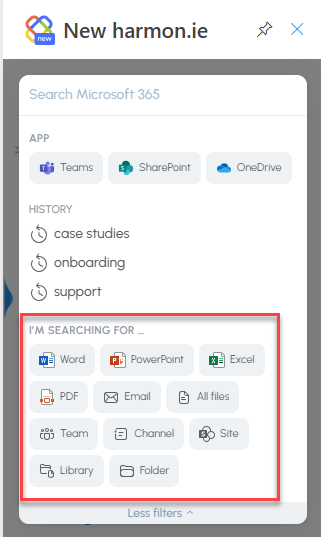
New harmon.ie adds pre-built filters:
- By the source app (SharePoint, Teams, OneDrive)
- By file type (Word, Excel, etc.)
- By location type (Folder, Library, Channel, etc.)
For more information, read Search across Microsoft 365.
Shortcuts in New harmon.ie
You can use shortcuts to perform common tasks in harmon.ie. Read about New harmon.ie shortcuts.