New harmon.ie
 Get to Know New harmon.ie
New harmon.ie allows you to interact with all your SharePoint, Teams, and OneDrive locations from a single interface within Outlook, or a desktop app. This guide introduces the interface and explains how to use its features effectively.
New harmon.ie offers two main views:
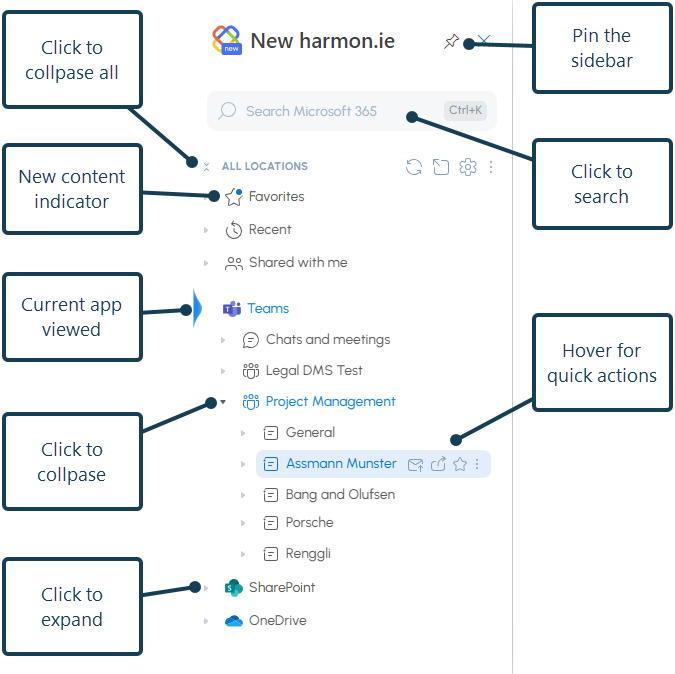
- HOME: Shows a tree view of your SharePoint, Teams, and OneDrive locations, favorites, recent, and shared with me.
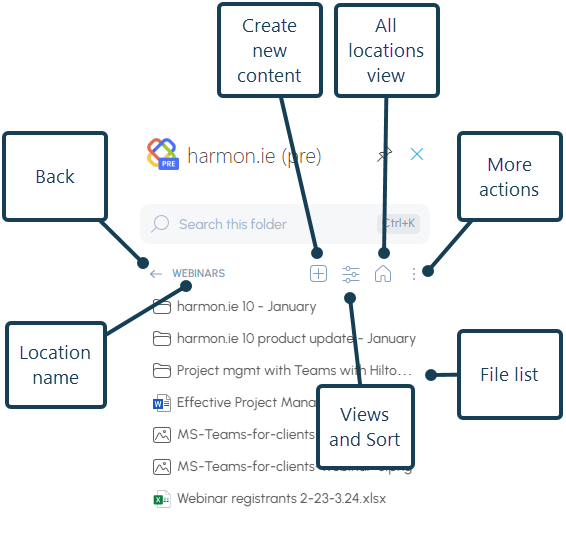
- CONTENT: Displays a list view of a group (such as Recent or Shared with me) or a single Microsoft 365 location, including all sub-locations, files, and metadata.
Comparison of the harmon.ie views
| Feature | Home view | Content view |
|---|---|---|
| Purpose | Browse and manage all SharePoint, Teams, and OneDrive locations in one tree view | Explore a specific location in detail, including files and metadata |
| Layout | Tree view with expandable/collapsible locations | Flat list of sub-locations, files, and metadata within one selected location |
| Navigation | Quick jump between multiple Microsoft 365 locations | Focused navigation within a single location |
| Metadata Display | Limited metadata (hover-based) | Full file metadata is visible |
| Actions | Hover over locations or files for actions like share, favorite, save email | Full action menu available for each item |
| Search | Search across all Microsoft 365 files | Search within the current location only |
| Best For | High-level browsing and switching between locations | Detailed work within a specific SharePoint, Teams, or OneDrive folder |
Each view lets you: save emails and attachments, upload files to SharePoint, Teams, or OneDrive; view and manage files; share locations and files; search; and more.
How to switch between the Home and Content harmon.ie views
Double-click a location in the Home view to open it in the Content view.
Click the Home icon ( ) in the Content view to open the Home view.
Home view – Groups
harmon.ie displays all your Microsoft 365 locations in a single tree view that includes:
- Favorites – locations and files that you use frequently can be saved as favorites for easy navigation.
- Recent – recent locations you uploaded files to using harmon.ie and recent files you worked on with Microsoft 365 apps.
- Shared with me – files and folders that your colleagues shared with you. You can include email attachments sent to you in this view.
- Teams – Teams locations and recent files, as well as files shared in Chats and meetings.
- SharePoint – your SharePoint locations and recent files. You may include SharePoint hubs and team sites here.
- OneDrive – all locations and recent files you saved to your OneDrive.
Content view
Double-click a SharePoint, Teams, or OneDrive location or a harmon.ie group (such as Recent, Shared with me) to view its contents in a list view. The Content view includes all the sub-locations and all files.
Feature comparison: Home vs. Content view
| Feature | Home view | Content view |
|---|---|---|
| Browse Microsoft 365 locations | Yes – Tree view of SharePoint, Teams, OneDrive, Favorites, Recent. Expand ( ) to view all sub-locations and 5 recent files, or collapse ( ) to view all sub-locations and 5 recent files, or collapse ( ) ) |
No – Focuses on a single location, including all sub-locations and all files |
| Open folder or location | Yes – Double-click to open the selected location, or use More actions > Open ( ) ) |
Yes – Double-click to open the selected location, or use More actions > Open () |
| Open Microsoft 365 file | Yes – Double-click to open file, or use More actions > Open in browser ( ) or Open in app ) or Open in app |
Yes – Double-click to open file, or use More actions > Open in browser () or Open in app |
| Preview document | Yes – Right-click a file > Show preview ( ) ) |
Yes – Right-click a file > Show preview () |
| View full metadata | Limited – Available on hover | Yes – Displayed in full list view. Tip: Pop out harmon.ie or open the harmon.ie desktop app for a wider display that shows more metadata columns without scrolling |
| Save email or attachments | Yes – Hover and click Save email ( ) or drag and drop ) or drag and drop |
Yes – Save email () or drag and drop |
| Upload files from computer | Yes – Drag and drop onto location or use More actions > Upload files ( ) ) |
Yes – Drag and drop or use New ( ) > Upload files () ) > Upload files () |
| Create new folders/files/links | Yes – Via More actions on hover > New ( ) > Choose item type ) > Choose item type |
Yes – New () > Choose item type |
| Search for files | Yes – Global Microsoft 365 search | Yes – Search within current location |
| Share files or folders | Yes – Hover over item > Share ( ) > Copy link (Ctrl+L) ( ) > Copy link (Ctrl+L) ( ), Email with link (Ctrl+E) ( ), Email with link (Ctrl+E) ( ), or Share to Teams (Ctrl+T) ( ), or Share to Teams (Ctrl+T) ( ) ) |
Yes – More actions > Share () > Copy link (Ctrl+L) (), Email with link (Ctrl+E) (), or Share to Teams (Ctrl+T) () |
| Mark/unmark as favorite | Yes – Hover and click Favorite ( ) or Unfavorite ( ) or Unfavorite ( ) location or file from favorites ) location or file from favorites |
Yes – More actions > Favorite () or Unfavorite () location, or hover over file and click favorite or unfavorite icon |
| Rename / delete | Yes – Via More actions > Rename ( ) / Delete ( ) / Delete ( ) on hover ) on hover |
Yes – Via More actions > Rename () / Delete () on hover |
| Edit details | Yes – Via More actions > Edit details ( ) on hover ) on hover |
Yes – Via More actions > Edit details () on hover |
| Download / Save As | Yes – Via More actions > Download / Save as ( ) on hover ) on hover |
Yes – Via More actions > Download / Save as () on hover |
| Copy, cut, and paste files | Yes – Right-click file(s) > Copy ( ) / Cut ( ) / Cut ( ), navigate to destination, right-click > Paste ( ), navigate to destination, right-click > Paste ( ). Keyboard: Ctrl+C / Ctrl+X / Ctrl+V (Cmd+C / Cmd+X / Cmd+V on Mac) ). Keyboard: Ctrl+C / Ctrl+X / Ctrl+V (Cmd+C / Cmd+X / Cmd+V on Mac) |
Yes – Right-click file(s) > Copy () / Cut (), navigate to destination, right-click > Paste (). Keyboard: Ctrl+C / Ctrl+X / Ctrl+V (Cmd+C / Cmd+X / Cmd+V on Mac) |
| Select SharePoint or Email view | No | Yes – View selector ( ) ) |
| Sort files | No | Yes – Click column header |
| Open in browser / Teams | Yes – From More actions > Open in browser () / Open in Teams ( ) on hover ) on hover |
Yes – From More actions > Open in browser () / Open in Teams () menu |
| Pin/unpin sidebar (Outlook add-in only) | Yes – Pin ( ) / unpin ( ) / unpin ( ) ) |
Yes – Pin () / unpin () |
| New content indicator | Yes – New content or new actions are indicated with a blue dot ( ) ) |
Yes – New content or new actions are indicated with a blue dot () |
| Open settings, manage Teams and SharePoint sites | Yes – Settings ( ) ) |
No |
| Return to All Locations | Not applicable | Yes – Click Home icon () |
| Refresh | Yes – Refresh all ( ) reloads content of expanded locations from Microsoft 365, and also syncs changes from pop-out to sidebar and vice versa ) reloads content of expanded locations from Microsoft 365, and also syncs changes from pop-out to sidebar and vice versa |
Yes – Refresh () from More actions reloads content from Microsoft 365 |
| Pop-out harmon.ie | Yes – Pop out ( ) — available on Mac, and on Windows when the harmon.ie desktop app is not installed or not signed in ) — available on Mac, and on Windows when the harmon.ie desktop app is not installed or not signed in |
No |
| Open harmon.ie desktop | Yes – Open harmon.ie desktop ( ) — available on Windows when the harmon.ie desktop app is installed and you are signed in ) — available on Windows when the harmon.ie desktop app is installed and you are signed in |
Yes – Open harmon.ie desktop () — opens the desktop app at your current location |
Open harmon.ie desktop app (Windows)
The harmon.ie desktop app provides a wider, dedicated workspace that stays open independently of Outlook. You can launch it in two ways:
- From Windows: Open the Start menu and launch New harmon.ie.
- From the add-in: Click Open harmon.ie desktop (
 ) in the Home view or in the Content view. The desktop app opens at the same location you are currently browsing in the add-in.
Popped-out harmon.ie
You can pop out harmon.ie into a separate, wider window to browse and explore Microsoft 365 locations with all file metadata in one expanded view. You can also drag and drop emails and attachments into the popped-out harmon.ie.
Pop-out is available on Mac, and on Windows when the harmon.ie desktop app is not installed or you are not signed in.
How to pop out New harmon.ie
- Open New harmon.ie in Outlook for Windows (new) or Outlook on the Web.
- Click the pop-out icon () in the Home view.
Changes made in one harmon.ie window (Outlook sidebar or pop-out) don’t automatically sync to the other.
To sync changes between harmon.ie windows, click the Refresh all icon ().
Shortcuts in New harmon.ie:
You can use the following shortcuts to perform common tasks in the sidebar:
| Windows shortcut | Mac shortcut | Command | How to use |
|---|---|---|---|
| Ctrl+L | Ctrl+L | Copy link | Click one or more locations and/or files to select them, then click Ctrl+L to copy the links to the selected items to the clipboard |
| Ctrl+E | Email with link | Click a Microsoft 365 location or file to select it, then click Ctrl+E to create a new email message with a link to this item. | |
| Ctrl+K | Ctrl+K | Search this location | Click Ctrl+K to start searching in the current location or in Home view. |
| Alt+A | Add as attachment | Click Alt+A when you are writing an email to add the selected file(s) to your email message as attachments. | |
| Ctrl+T | Ctrl+T | Share to Teams | Click Ctrl+T to share the selected file(s) in Teams. (This shortcut doesn’t work in Outlook on the Web.) |
| Ctrl+C | Cmd+C | Copy | Select one or more files, then click Ctrl+C to copy them. Paste them in another Microsoft 365 location. |
| Ctrl+X | Cmd+X | Cut | Select one or more files, then click Ctrl+X to cut them. Pasting them in another Microsoft 365 location moves them there. |
| Ctrl+V | Cmd+V | Paste | Select a destination library, folder, or Teams channel, then click Ctrl+V to paste the copied or cut files into it. |
| Delete | Delete one or more folders and files | Click Delete to delete the selected file(s) and/or location(s). |
How to send feedback to harmon.ie?
- Open harmon.ie’s Home view.
- Click the More actions icon next to All Locations (), then click Send feedback ().
- Select an icon that best matches how you feel about New harmon.ie.
- Optionally, type in your comments and let us know if we can contact you about your feedback – what you like, any feature you are missing, or an error you encountered.
- Click Send feedback.
 ), then click Send feedback (
 ).
).We love getting feedback from our users!